Porta is a small program you install on your instrument PC. Once it is running, the export files your instrument software writes appear as a list inside Clarida, so you can import a run without copying it to a memory stick or emailing it to yourself.
Nothing about your run changes. The instrument software writes its export exactly where it always did, and you still export it the way you do now. Porta only changes how that file reaches Clarida: it comes across when you ask for it, and goes to the ordinary importer described in Importing qPCR run files and Cq (Ct) tables, with the same reconciliation against your design.
Porta runs on Windows only. It reads files: it fetches the export your software produces, rather than talking to the instrument itself. The exception is the Roche LightCycler 480, where Porta can read runs from the instrument's own database with no export step (see Reading a LightCycler 480 directly).
Your IT department may want to look at Porta before you install it. What they may ask (what it connects to, what it can reach, how it is built) is answered at Porta, notes for IT review. That page is public, so you can send them the link without their needing a Clarida account.
How to covers setting Porta up and importing a run through it; How it works explains the import list, the LightCycler 480, sharing one instrument between groups, removal and the limits.
How to
Five steps, no command line. Before you start: a Windows PC that can see your export folders, administrator rights on it (as for installing any program), and an internet connection on that machine. You do steps 1, 4 and 5 in Clarida from your own computer, 2 and 3 at the instrument PC. Step 6 is the import you repeat after each run.
1. Create a connector in Clarida
In the sidebar, go to Setup → Connectors and choose New connector.
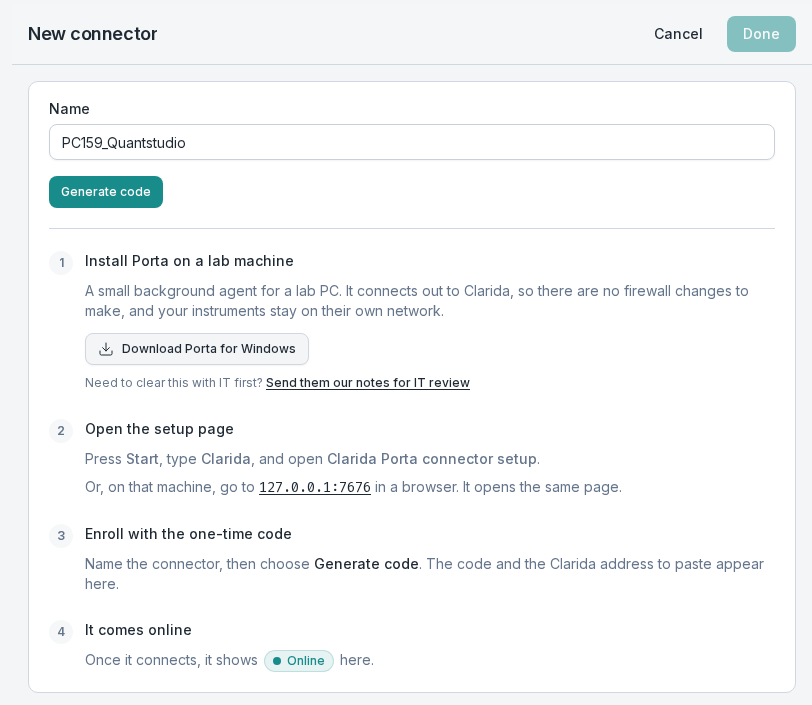
Name it after the machine it will run on. PC159_Quantstudio is more useful in six months than Connector 1, and this name is what you will be picking from when you import.
Then choose Generate code: Clarida shows a one-time Enrollment code and the Clarida URL. Leave the panel open; you need both in step 3. The rest of the panel walks you through the same steps as below.
2. Install Porta on the lab machine
Download the installer from the same panel and run it on the instrument PC. It installs a background service that starts automatically, so it survives a reboot without anyone logging in.
Windows will warn you, and the way past it is not obvious. You will see "Windows protected your PC", describing Porta as an unrecognized app. The first dialog offers only Don't run. Click More info and a Run anyway button appears, along with the publisher: Clarida.
The installer is signed by us, which is why Windows can name Clarida as the publisher rather than showing "Unknown". SmartScreen also counts how widely a particular file has been downloaded, and a newly released version has no such history yet. You will see the warning again after each Porta update, for the same reason.
3. Pair it with your workspace
On the lab machine, press Start, type Clarida, and open Clarida Porta connector setup. This opens a small setup page that Porta serves on that machine.
Paste in the Enrollment code from step 1, and the Clarida URL where the page asks for the Clarida server. The connector pairs, and back in Clarida it changes from Awaiting pairing to Online. The setup page now names the Clarida workspace the machine is connected to, so whoever is sitting at it can check it went where you meant.
4. Choose what it may read
A newly paired connector serves nothing at all until you say so. Open the connector in Clarida, choose Edit connector, add the folders it may read, and give each one a label you will recognize later.
Name the specific export folder rather than a whole drive: a directory with forty thousand files in it is unpleasant to browse.
On a machine attached to a LightCycler 480, this is also where you point Porta at the instrument itself, so it can read runs without an export. Reading a LightCycler 480 directly covers what to fill in. The two are independent: a connector can serve folders, the instrument, or both.
5. Try it
Open any experiment, start an import, and check that your connector's folders show up as a source. If they do, you are finished. If the connector still reads Awaiting pairing, step 3 did not complete.
6. Import a run from the instrument PC
Run your plate as you always do, and save the run file or export the Cq table from the instrument software as usual. Wait until the instrument software says the run has finished. qPCR instruments write their file as they go, so an export grabbed early is a half-finished run. Porta cannot tell the difference, but you can.
Then, from your own computer, open the experiment in Clarida and go to Import & annotate.
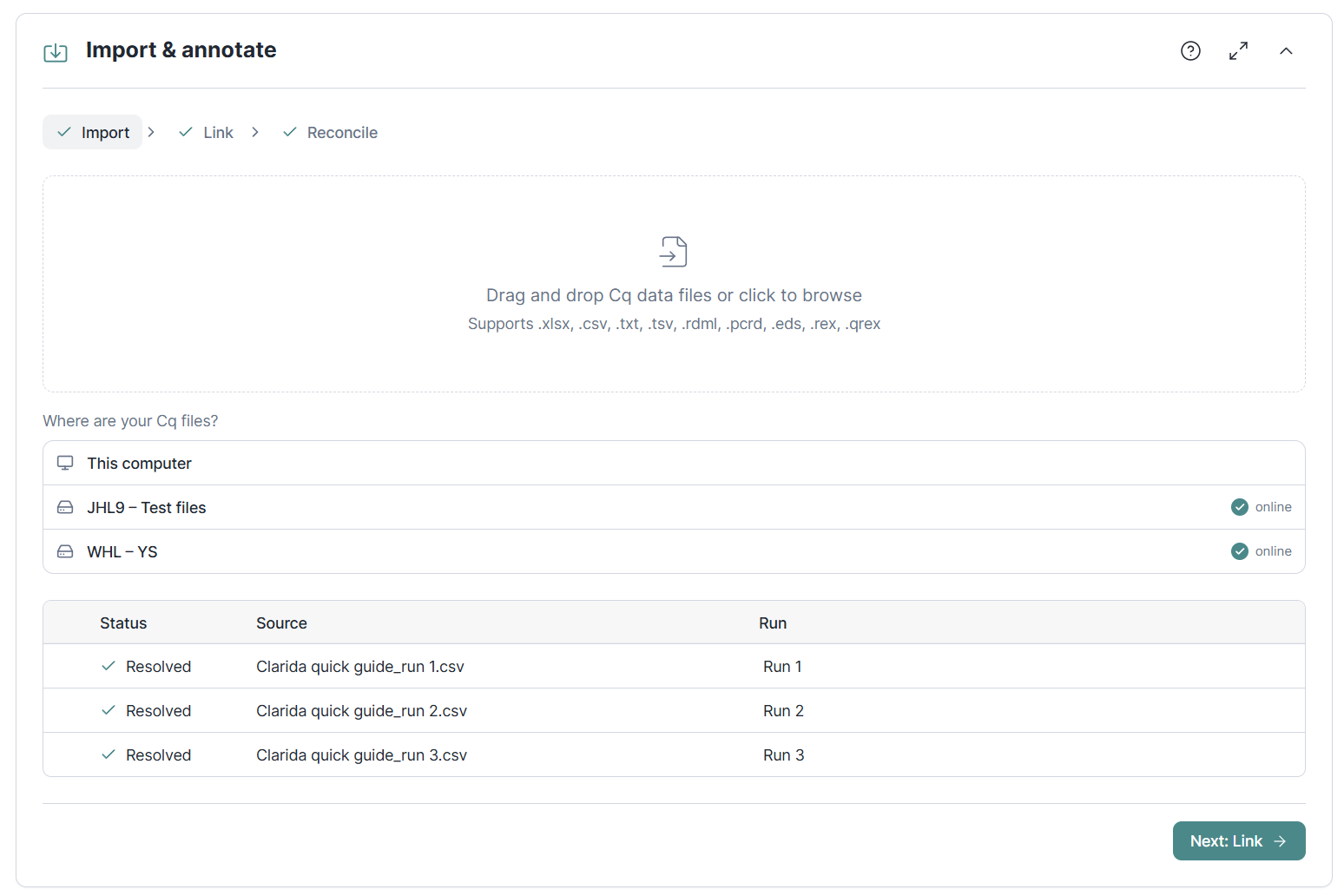
This is the one place your habits change. Before you had a connector, clicking the drop zone opened your computer's own file browser straight away. Now a list of sources appears under the drop zone, with This computer at the top and each connected machine below it. Choosing This computer gives you the familiar file browser, exactly as before. Choosing a connector browses the instrument PC instead.
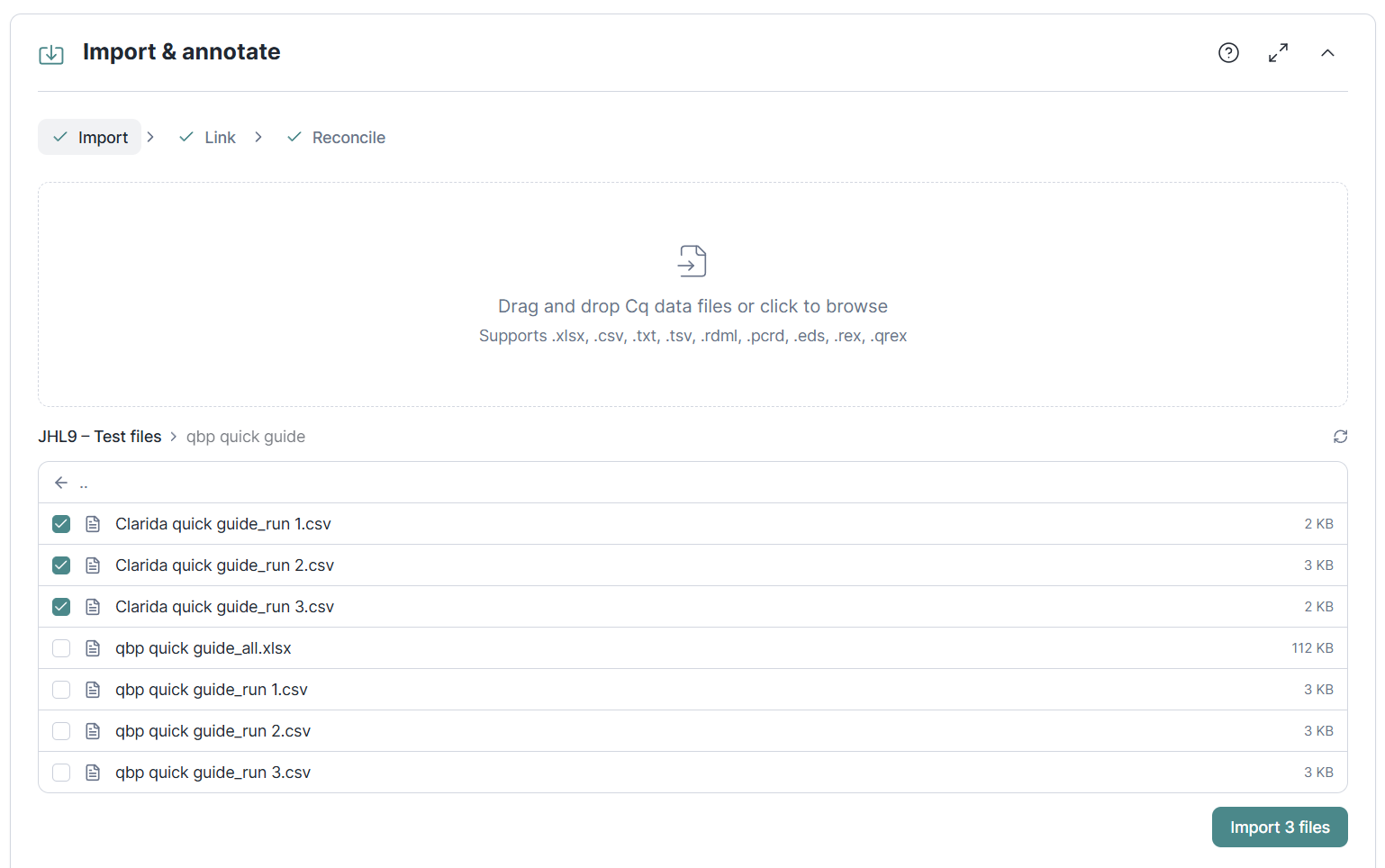
Pick a connector and you get a file list from that machine. Tick as many files as you want and import them in one go, the same way you would multi-select in your own file browser.
From there the import proceeds exactly as it would if you had uploaded the files by hand, and each one keeps its original name and timestamp.
How it works
What the import list shows
Connectors are listed as connector name, folder label, so a machine sharing two folders appears twice. Each shows whether it is online; an offline machine is listed but cannot be chosen. A LightCycler 480 configured on a connector appears as its own source, and so does a folder another workspace shares with yours, marked Shared by that workspace.
Inside a folder, the list shows each file with its size and a .. entry for stepping through subfolders. Folders come first, then files, each sorted alphabetically, which puts names that start with a year-first date in date order. A selection holds within one folder. Files that Import does not read are listed but cannot be ticked.
A run on the instrument PC comes into Clarida from the import list. The instrument PC does need to be switched on and connected when you import, which is worth knowing if your lab powers instruments down overnight.
If something looks wrong. A connector showing offline has lost contact with its PC: check it is on, awake and on the network. It reconnects by itself once the machine is reachable, and nothing needs restarting. A connector missing from the list altogether may have no folders added to it yet, and a file missing from a folder you can see may be in a neighboring folder nobody has added. A file above 12 MB is listed but cannot come through Porta; import it from This computer instead. That leaves room for qPCR run files and exports.
Reading a LightCycler 480 directly
On a Roche LightCycler 480 there is a second option: Porta can read finished runs out of the instrument's own database, so there is no export step at all. You pick the run by name inside Clarida and it comes across directly.
This uses Roche's LIMS Interface Module, which is part of the LightCycler 480 software but is not always installed. If it is missing, ask whoever supports the instrument to add it; nothing on the Clarida side can substitute for it.
The connector's panel in Clarida asks for four things:
- LIMS server computer: the machine running the LightCycler 480 software, which Roche calls the control unit. Use
localhostif that is the same machine Porta is installed on. Otherwise give its computer name or IP address. This is a real machine on your network, not a label you choose, and not the name of the database or the experiment. - Port:
1776unless someone changed it. Roche's module also uses 1777, so both need to be open if a firewall sits between the two machines. - LC480 login: an account in the LightCycler 480 software. Roche recommends creating a separate account used only for this, rather than the System Admin login.
- Password: for that account. It cannot be shown again; type a new one to change it.
Save, then use Test connection. That signs in and reports what happened, so you find out about a wrong password or an unreachable machine now rather than the first time someone tries to import.
Leaving the password blank keeps the one the lab machine already has, so changing something unrelated on the connector will not disturb a working connection.
One connection at a time
The LIMS server accepts a single connection, and Roche's default is not to raise that. In practice this means Porta and the LightCycler 480 software's own LIMS features cannot both be signed in at once: whichever gets there first holds it, and the other is told the connection limit is reached.
Porta is built for this. It signs in only for the moment it needs, then signs out, so it is not sitting on the connection between imports. If you do see a connection-limit message, something else is signed in; close it and try again.
A run also has to be finished before it can be read. A run that has not finished is not offered.
One instrument, several groups
In a core facility, or a lab where several groups share one instrument, everyone's runs come off the same PC, and each group should see its own and nobody else's. A folder that holds every group's exports shows every group's runs to everyone who can read it.
Porta handles this by sharing. The workspace that paired the connector, typically the facility running the instrument, owns it. It can share part of that connector with another group's workspace: chosen folders, and on a LightCycler 480, chosen folders of the instrument's database.
What a share gives is narrow, and both sides should read it the same way:
- The other group can list and import from what was shared with it. Its runs then appear in its own import list, marked Shared by the facility.
- It cannot see other folders, where a folder lives on the machine, or the connector's settings, and it cannot change anything.
- Groups never see each other. The facility, which already controls the instrument PC, can see everything the connector serves.
To share (the facility): open the connector, choose Edit connector, then Share… under Shared with other workspaces. Pick what to share and create a code. It works once and expires after 24 hours. Send it to an admin of the other group's workspace. Only a workspace owner or admin can share, and a shared connector carries a Shared tag on its card.
To accept (the group): an admin chooses Accept a share code, under Shared with this workspace on the Connectors page, and pastes the code. The facility's admins are told by email that it was accepted.
To end it, either side can: the facility with Stop sharing, the group with Leave. Runs already imported stay where they are.
Two things decide whether this works well in practice:
- Give each group its own folder. A share is a folder. If every group's exports land in one folder, sharing that folder shares all of them. Agree a folder per group on the instrument PC before sharing anything.
- Moving a shared folder moves the share. If someone changes where a shared folder points, the group it is shared with can now read the new location. The facility's admins get an email when that happens. Removing a folder from the connector removes it from every share at once.
The setup page on the instrument PC lists every workspace that can reach the machine and exactly what each one can read, so whoever runs that PC can check it without asking anyone.
If the instrument PC is not yours
On a shared instrument, a core-facility machine, or a PC managed by your IT group, the person responsible for that machine has the final say. From Porta's own setup page on that machine they can:
- Block the folders or the instrument connection on this machine, for every workspace, the one that paired it included. Nothing done in Clarida turns it back on.
- Disconnect the machine from Clarida altogether. Clarida is told, the connector shows as Revoked, and the workspace admins get an email. Reconnecting needs a new enrollment code. The folder and instrument settings stay on the machine for that.
So nobody widens what a machine shares without the people who run it knowing. It is worth a short conversation before you install Porta on an instrument you do not look after yourself.
Removing Porta
Uninstall Porta from Settings → Installed apps, as with any Windows program. This removes the background service.
Separately, revoke the connector in Clarida to close its record. Revoking does not need access to the machine, which makes it the right action for a PC that has been lost, replaced, or decommissioned. If you are at the machine anyway, Disconnect on its setup page does both halves at once: it revokes the connector in Clarida and removes the machine's key, while leaving Porta installed.
Upgrading to a newer version clears nothing. You will not have to pair the connector again.
What Porta does not do
- Read instruments other than the LightCycler 480 directly. Every other instrument comes in through the run file or Cq table its software saves in a folder Porta serves.
- Serve more than one LightCycler 480 per connector. A lab running two sets up a connector for each.
- Hand a connector over. A connector, with its shares, belongs to the workspace that paired it; it cannot be moved elsewhere.
- Import files above 12 MB. Import such a file from This computer instead.
Porta reads the folders you choose (and, on a LightCycler 480, the runs themselves) when you ask, so a run gets from the instrument PC into your analysis without the trip in between.